
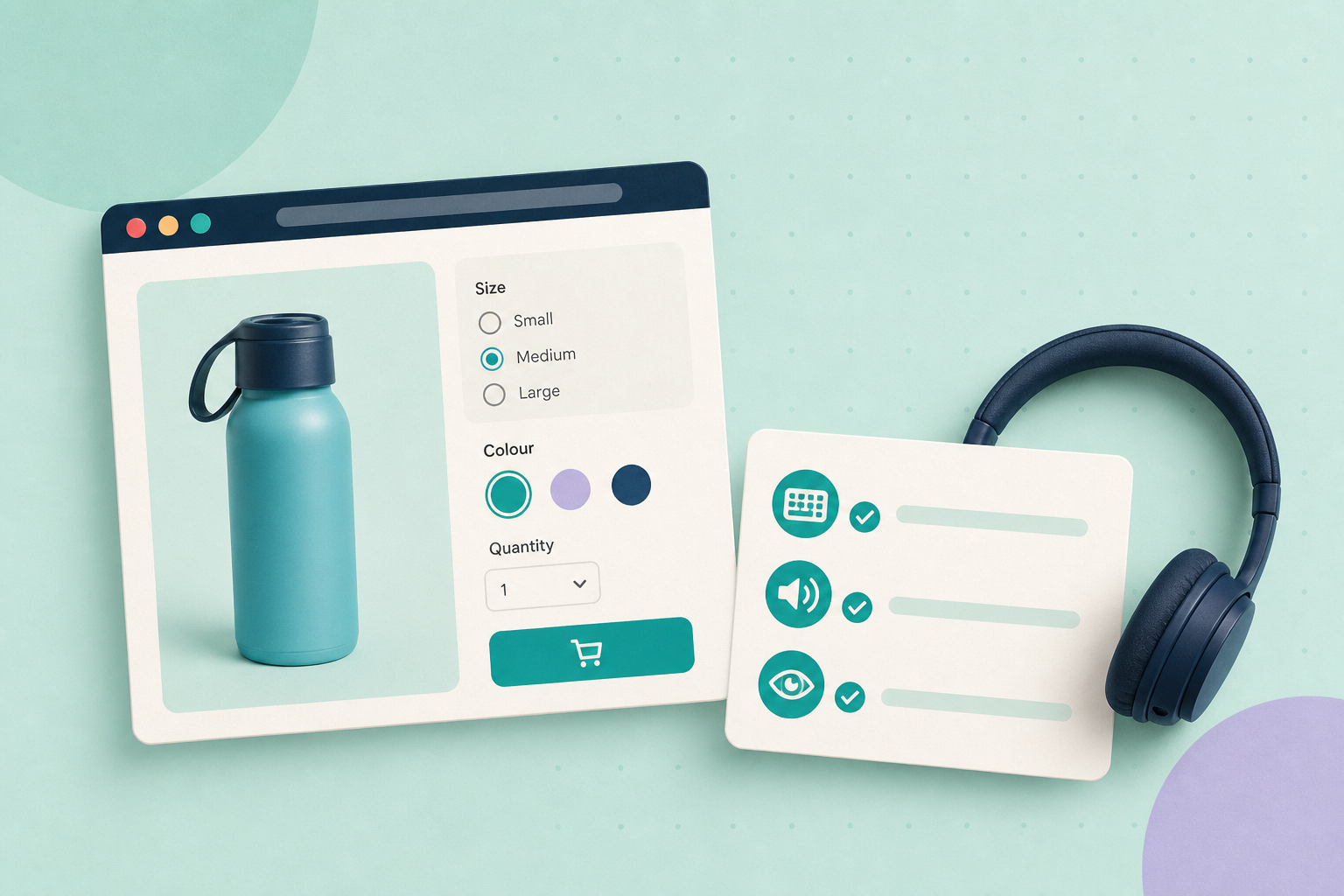
If some customers can’t choose a size or colour, the simplest reliable fix is to use or restore native form controls (a select or radio inputs) so keyboards and screen readers work without extra scripting. If your theme or plugin shows custom visual buttons, you can still make them accessible—but only by matching the WAI‑ARIA patterns and keyboard interaction models those assistive technologies expect.
Contents
Standards to read first
Start with the official patterns and techniques so your checks match accepted expectations. For custom widgets compare your implementation to the WAI‑ARIA Authoring Practices examples and keyboard models: WAI‑ARIA APG. For the recommendation to prefer native HTML controls (select, input[type=radio]) consult the WCAG technique that explains why standard form controls improve interoperability: WCAG HTML H91. The WAI forms tutorial explains label/name behaviour you’ll need to verify: WAI forms — labels.
Inspect the product‑page markup
Open the product page in a browser, use Developer Tools → Elements and find the variation controls. Two common outcomes:
- Native controls: you’ll see <select> elements or <input type=”radio”> plus <label for=”…”> associations. That’s the simplest accessible path and aligns with the WCAG technique above. WCAG H91.
- Custom visuals: the page uses <div>/<button> or other non‑form elements styled as options and updates selection with JavaScript. These must expose a programmatic name/role/value and follow the APG keyboard model. Compare the DOM attributes you see with examples on WAI‑ARIA APG.
Record the element types, any aria-* attributes, and whether each visible option has an associated <label> or an accessible name.
Keyboard test steps
- From the top of the page press Tab repeatedly and watch the visible focus outline. You must reach every variation control (or its logical container) and then the Add to Cart button.
- If controls are native: verify you can change the selection with keyboard alone (Arrow keys or Space/Enter where expected) and that focus remains visible while interacting. Reference: WAI forms — labels and WCAG H91.
- If controls are custom: check the keyboard model matches the APG pattern (for example a radio‑group should allow arrow keys to move selection within the group and Tab to leave the group). If Tab navigates into the group but arrow keys don’t move selection, the widget is not following the expected keyboard interaction. See examples at WAI‑ARIA APG.
- Confirm you can then Tab to Add to Cart and activate it with Enter or Space. If Add to Cart can’t be reached by Tab, there is a focusability problem to fix.
Screen‑reader test steps
Run one quick pass with a free screen reader (NVDA on Windows, VoiceOver on macOS). The goal is to confirm the control announces a clear name, role and current value when focused, and that changing selection is announced.
- Navigate to each variation control and listen for a spoken label and role (for example “Size, radio group, 3 options, Medium selected”). That’s the Name/Role/Value expectation in practice; the WAI forms tutorial explains the naming rules: WAI forms — labels.
- Change the selection and listen whether the new value is spoken. For custom widgets, if the screen reader only hears a generic button or no value change, the widget must expose an accessible value change via aria‑checked/aria‑selected or an appropriate role per APG.
- If selecting a variation changes price, stock or an image, check whether those changes are announced (see next section). If not announced, confirm at least that the content updates visually and plan to add an accessible notification.
Dynamic updates and aria‑live
If changing a variation updates the price, availability or a selected image, those updates should be perceivable to keyboard and screen‑reader users. Use an ARIA live region (for example aria-live="polite") to announce short textual summaries such as “Price updated to £29.99, 3 left in stock”. Keep messages brief to avoid excessive verbosity. If an update replaces the region’s entire content and you need assistive technologies to re‑read the whole wording, consider adding aria-atomic="true" and test the behaviour with NVDA/VoiceOver. The WAI‑ARIA APG and WAI tutorials describe these patterns: WAI‑ARIA APG and WAI forms — labels.
Implementation notes: add a region such as <div aria-live=”polite”>…</div> and update its text when selection changes. If you need the browser or screen reader to re‑announce the whole region on replacement, consider adding aria-atomic="true" and then re‑test. Test with a screen reader to confirm the announcement is helpful, not noisy.
When to fix locally and when to escalate
Prefer local fixes when feasible:
- Replace a custom widget with native <select> or radio inputs where appearance can be modestly adjusted without breaking your theme. This follows WCAG H91.
- If you must keep a custom visual, implement the appropriate APG widget pattern (roles, aria‑checked/aria‑selected, keyboard handling, focus management) and add a tested aria‑live update for dynamic content. Validate with NVDA/VoiceOver after changes.
Escalate to the theme/plugin vendor when:
- The controls are injected by a third‑party script you cannot safely modify.
- The vendor’s documentation claims accessibility but your site’s rendered markup does not match those claims — ask the vendor for an accessibility fix or an update. WooCommerce’s store‑owner guidance is a useful starting point when reporting issues: WooCommerce accessibility tips for store owners. For variable‑product behaviour see the core docs: WooCommerce variable product.
- You need a long‑term theme change: consult WordPress project accessibility resources to decide whether switching to an accessibility‑ready theme makes sense: WordPress accessibility and the theme developer guidance at WordPress theme accessibility.
Quick decision checklist
- If markup shows <select> or <input type=”radio”> with labels and keyboard/screen‑reader tests pass — document and leave as is.
- If markup is custom and fails keyboard or screen‑reader tests — plan either to replace with native controls or implement the APG pattern and aria‑live announcements, then retest.
- If controls are provided by a plugin/theme you can’t edit — file a clear bug report to the vendor including the product URL, a short description of the failure (what keys or announcements don’t work) and a reference to the APG or WCAG technique you used to test.
Finish with one concrete action: pick one product page that matters commercially, run the keyboard and screen‑reader checks above, record the DOM element types and any missing aria attributes, then either implement the local fix or open a vendor accessibility ticket with those findings. Useful related guides: Make variation options easier to choose and Write image alt text that helps shoppers.