
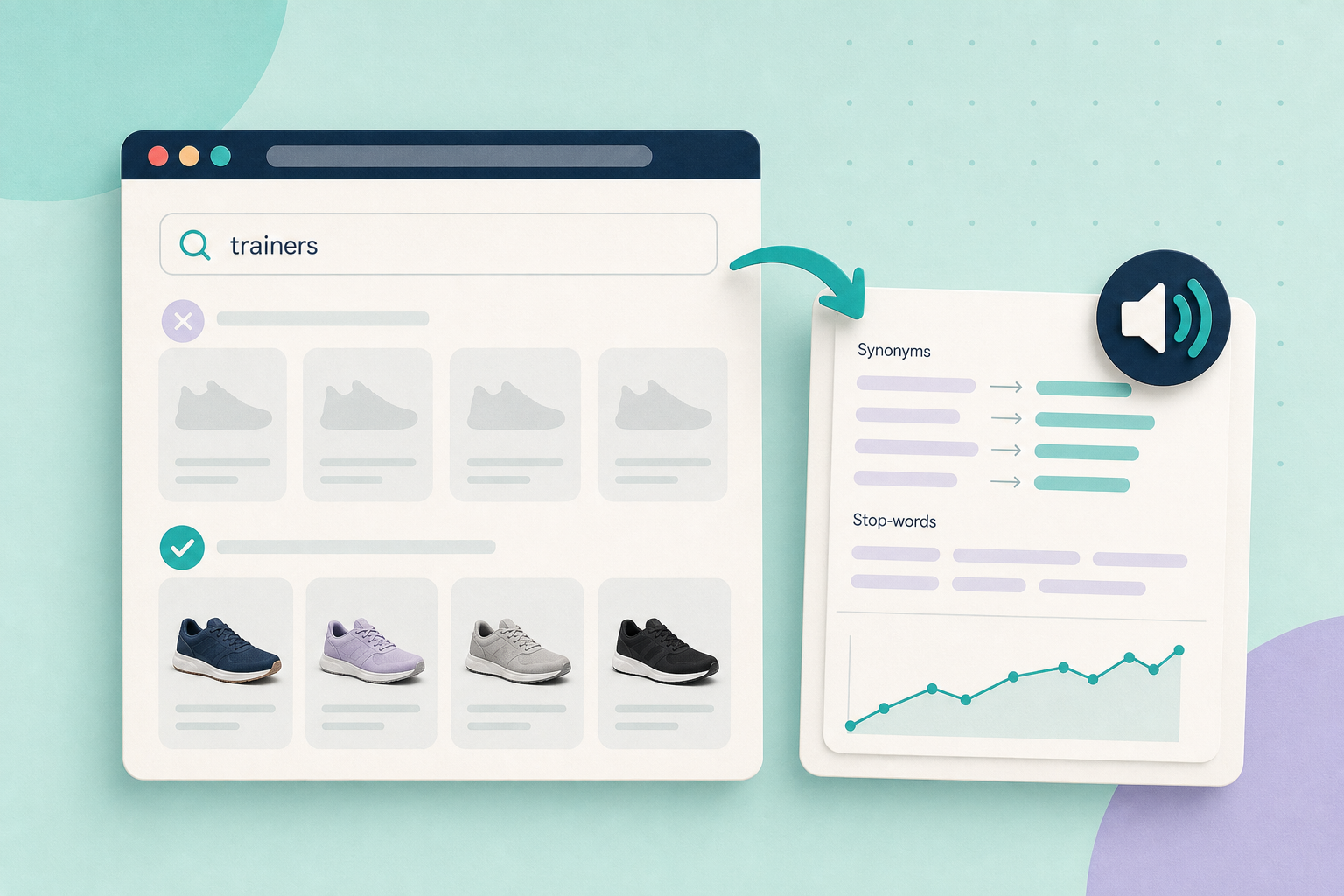
If shoppers use different words for the same thing (sneakers vs trainers, tee vs t‑shirt), a small synonyms list can turn zero‑result searches into useful product results quickly. Start by identifying which search implementation your store actually uses, because how you add synonyms and whether you must rebuild the index depends on the plugin or hosted service.
Contents
Check your search implementation
Open WordPress admin → Plugins or your store control panel and note the active search tool (examples: WooCommerce Product Search, Searchanise, or a plugin like Relevanssi). Different products name settings and index actions differently; consult the official docs for the exact UI steps.
Useful vendor docs (open now in your browser): Product Search — Searches report (shows search analytics and 0‑results reporting) and Searchanise — Synonyms (describes synonyms UI and reindex instructions). If you use a WordPress plugin, check its page: Relevanssi. For troubleshooting zero‑result searches on WooCommerce, see our guide: Your WooCommerce search returns nothing.
Audit search queries
- Open the search analytics or query log your search tool provides (for WooCommerce Product Search see the Searches report above).
- Export or view recent queries for the last 30–90 days and filter for: zero‑result searches, repeated near‑misses (search returns irrelevant results), and high‑frequency terms you care about commercially.
- For each candidate term record: query text, count (frequency), whether results were zero or irrelevant, and a short business impact note (e.g., high‑margin product likely lost).
This audit produces a prioritised list for the synonyms step — don’t add mappings for every rare query; start with the top ~10 high‑impact terms.
Build a small, data‑driven synonyms list
Keep mappings concise: customer term → canonical site terms. Prefer one‑to‑many mappings where appropriate (trainers → sneakers, athletic shoes). Avoid overly broad rules that make unrelated queries return noisy results. Record each mapping in a short table or text file so you can paste it into the plugin UI.
trainers => sneakers, athletic shoes
hoodie => sweatshirt, hooded jumper
tee => t-shirt, tee-shirt
kid shoes => children's shoes, kids' footwear
bumbag => waist bag, belt bag
Stop‑words: what they are and when to change them
Stop‑words are very common words (a, the, of, for) that some search engines ignore to save index space or speed up queries. In e‑commerce they matter because removing a stop‑word can either make a query match more products (for example, dress for women versus women dress) or introduce noise if the word is meaningful in your catalogue (a short model name or part code that looks like a stop‑word).
Practical vendor guidance:
- WooCommerce Product Search: edits to indexing and filter behaviour are documented in the product search FAQ. If you change stop‑word behaviour you will usually need to rebuild the product index. See Product Search — FAQ.
- Searchanise: the hosted service manages stop‑words centrally; check the Searchanise admin UI and their docs (they also document synonyms and reindex behaviour). See Searchanise — Synonyms.
- Relevanssi (self‑hosted plugin): you can inspect and edit the stop‑word list in the plugin settings or provide a custom list. See the Relevanssi plugin page for current options and links to its docs.
Small sample list (use cautiously):
sample stop‑words:
a, an, the, of, for, in, on
Rule of thumb: don’t remove or disable all stop‑word filtering site‑wide without testing — start on a staging copy or during low traffic, change one small set of words and rebuild the index if required.
Test template (same before/after approach as synonyms):
- Query text
- Result count and top 3 result titles/SKUs before the stop‑word change
- Result count and top 3 result titles/SKUs after the change
- Short relevance note (did removing or adding the stop‑word improve intent match?)
Schedule reindexing for low‑traffic times and treat stop‑word changes as a targeted experiment — they affect many queries. Now add your stop‑word change and rebuild the index where your provider requires it.
Add synonyms (and reindex if required)
- Open the Synonyms or Search settings in your search tool and paste each mapping according to the provider’s required format. For Searchanise the documentation shows a left/right mapping UI and the reindex step; follow that guidance in your admin page. See Searchanise — Synonyms.
- After saving synonyms, trigger the index rebuild if your provider requires it. WooCommerce Product Search documents an Update or rebuild action and notes index time varies with catalog size; check the product search FAQ for your site’s behaviour. See WooCommerce Product Search — FAQ.
- Schedule rebuilds for low‑traffic times for large catalogs. Hosted solutions may queue reindexing automatically but still provide a manual start option; check the vendor UI.
Do not assume synonyms apply instantly — many tools only apply mappings once the index has been rebuilt.
Test and measure results
Test the same queries you recorded in the audit and keep a simple before/after log. For each query record:
- Query text
- Result count before change and the top 3 result titles or SKUs (copy/paste)
- Result count after change + the top 3 result titles or SKUs
- Optional: track clicks/CTR or conversions for a few weeks if your analytics link searches to behaviour
Simple example record row: “trainers — before: 0 results — after: 24 results; top results: SKU 123, SKU 456, Category: Running Shoes.” Look for fewer zero‑result queries and better matches to intent. Keep expectations realistic: synonyms only affect mapped terms and don’t fix deeper relevance problems.
Maintenance and review
- Re‑audit search queries monthly or around seasonal promotions.
- Remove or refine noisy mappings that produce irrelevant results.
- Keep the synonyms list small and focused on terms with measurable business value.
Fictional example (illustrative)
Imagine your analytics show 84 searches for “trainers” in the last 60 days and many returned zero results. You add the mapping trainers => sneakers, athletic shoes in your search plugin, rebuild the index, and retest.
Record before/after: before — 84 queries, 0 results; after — 84 queries, 22 results with the top matches from your sneaker category. This illustrates the workflow; it is a fictional example and not a recorded test on an actual site.
Quick checklist
- Identify the active search tool in WP admin (plugin name/version).
- Export recent search queries; prioritise top zero‑result and high‑frequency near‑misses.
- Create up to ~10 high‑value synonym mappings from audit data.
- Enter mappings in plugin UI and run the documented reindex/rebuild action.
- Test the same queries and record before/after top results and counts.
- Schedule a monthly review and refine noisy entries.
Next action: open your admin, find the active search extension and view its Searches or Query log. The WooCommerce Product Search report explains where to look for 0‑results; see WooCommerce Product Search — Searches report. If your tool is Searchanise, their synonyms guide shows the UI and reindex step: Searchanise — Synonyms.
Related guides: Product Search — Searches report and Relevanssi (plugin).