

A product photo can be perfectly useful and still look a little flat. Perhaps the background is distracting, or the lighting does the product no favours. An AI edit is tempting: upload the photo, ask for a studio shot, and see what comes back.
We tried that with a real yellow steel protection barrier from Storak. The edited image looked cleaner. A closer comparison told a more interesting story: some of the small details had changed too. Here’s what happened, and what we’d check before putting an image like this on a product page.
In this guide
One real product photo, two studio edits
Our starting point was this Storak protection barrier, using its catalogue photo with the owner’s permission. We wanted a quieter background, softer light and a little breathing room around the product.
The experiment ran through OpenAI’s image-editing API using GPT Image 2, whose supported endpoints include image editing. This was an automated test, rather than someone editing the image in the ChatGPT interface.
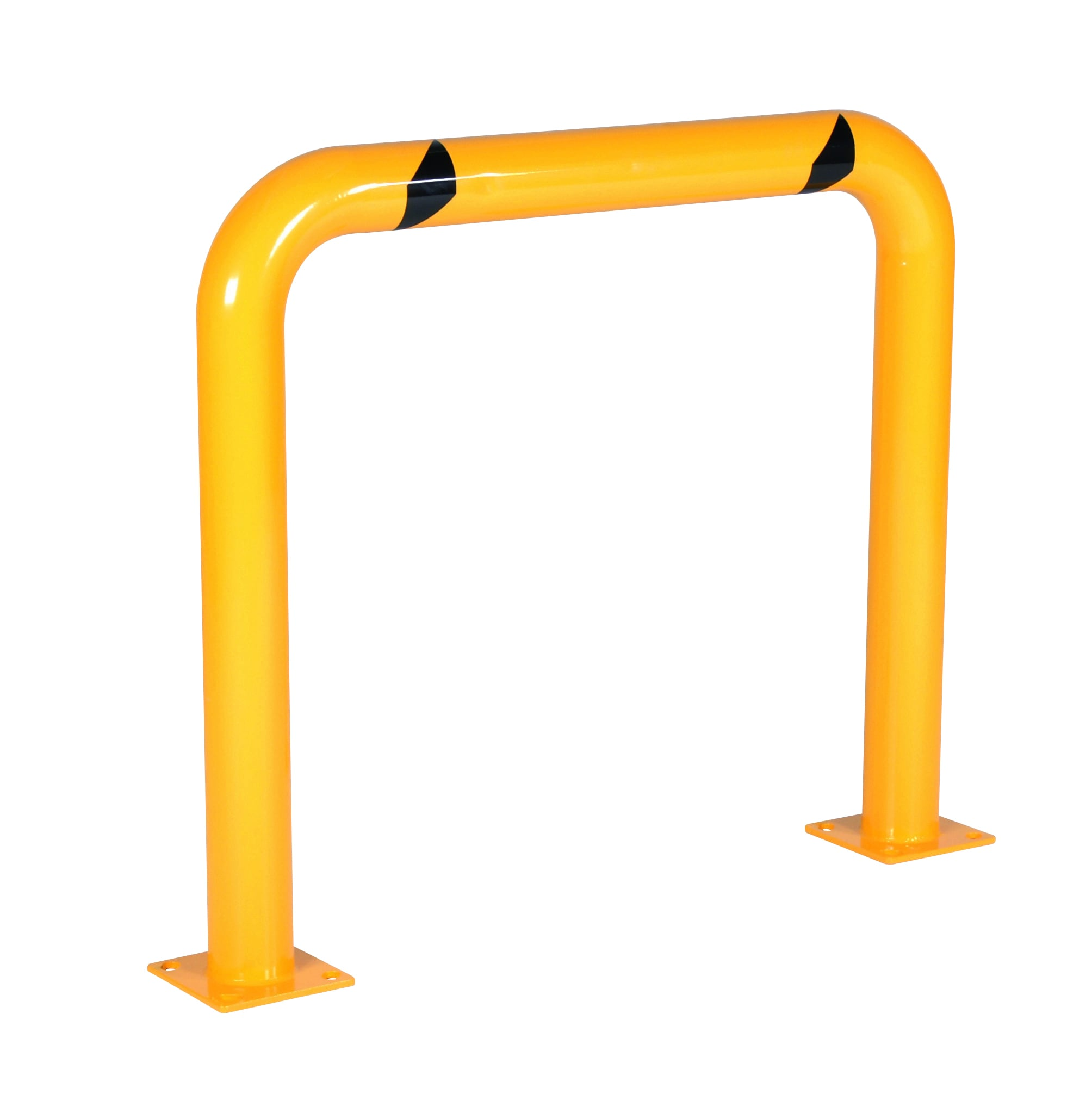
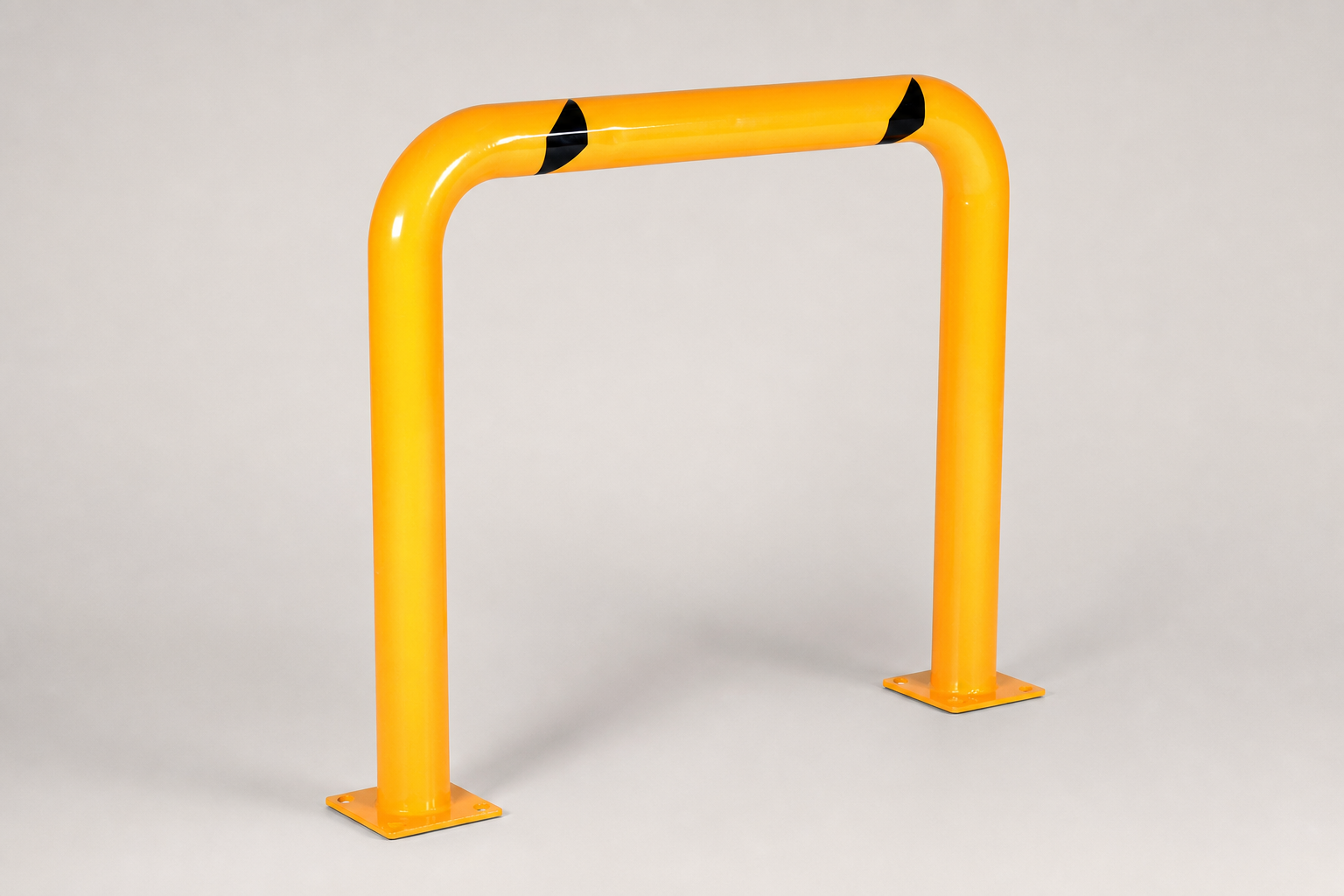
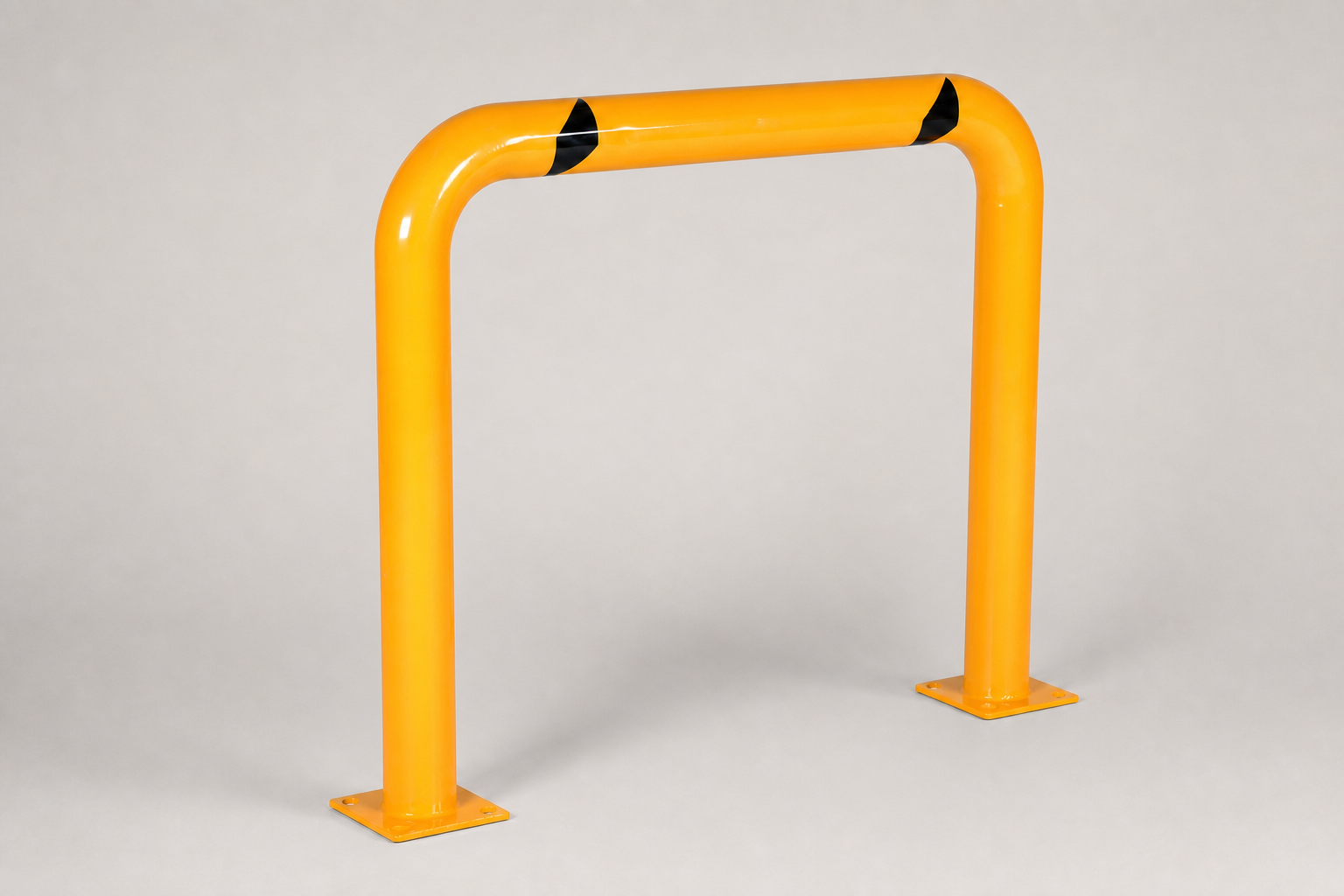
The first result gave us the studio setting we’d asked for. The revision tried to keep that presentation while restoring details from the original. Neither edit passed our automated check for catalogue use. That doesn’t make the exercise pointless: it shows exactly why the comparison matters.
The small details are where it gets interesting
At a glance, the yellow barrier is still recognisable. Look along the top rail, though, especially at the black markings and the way the light catches the paint. The automated comparison flagged changes to the markings’ shape and position, smoother surface details and a slightly different colour tone.
Those are visual observations, not laboratory measurements. Lighting is meant to change in a studio edit, so a different reflection alone wouldn’t settle the question. The more useful question is whether the new image still gives a fair picture of the product’s markings, finish and condition.
For the second attempt, the original photo and the first edit were both supplied as references. The revision asked for the original decal shapes and positions, the small surface marks and the same tube spacing to be preserved. Some differences remained, so we kept the original as the catalogue image. A nicer background wasn’t enough to change that decision.
Try one photo before you edit the whole catalogue
Choose a photo you have permission to use, with the whole product visible. Keep an untouched copy beside you. It will be your reference when the edited version arrives, even if the result looks convincing at first.
Ask for a specific setting and say clearly what must stay the same. Here’s a shorter prompt you can adapt; it’s a suggested starting point, not the exact wording used in our test:
Edit this product photo onto a seamless light-grey studio background with soft lighting and a subtle contact shadow. Keep the whole product visible. Preserve its shape, proportions, colour, markings, fittings and visible surface details. Do not add accessories or remove wear. Change only the background, lighting and framing.OpenAI’s image-generation guide describes editing existing images from image inputs. That ability is useful here, but the wording of a prompt is still a request—you need to check what the edit actually did.
Compare the result with your original at the size shoppers will see it, then zoom in on the details that identify the product:
- Shape and fittings: count handles, feet, shelves or bolt holes. Check their positions.
- Labels and markings: look for altered text, logos, stripes or decals.
- Finish and condition: check whether texture, wear or small marks have disappeared.
- Colour: decide whether the new lighting makes the finish look like a different option.
If you spot a problem, name it in your next instruction. “Restore the black marking on the top rail to its original position” gives you something concrete to check in the revision. Save that result separately, and compare it with the original again—not just with the first edit.
A polished image still needs to show the right product
Our revised barrier image is shown here to explain the experiment, clearly labelled as an AI edit rejected for catalogue use. We wouldn’t move it into an advert just because it failed the product-page check. Shoppers still need an accurate view of what they’re buying.
If the details keep drifting, use the original or take a fresh photo with better light and a simpler background. You don’t have to keep prompting until an edit becomes acceptable.
For a broader starting point, see our guide to creating useful shop images with AI. When your image is ready, our product-image alt text checklist will help you describe it clearly.
Start with one image and keep the comparison honest. If the background improves while the product stays true to the original, you have something worth using. If the product changes, the original wins.