
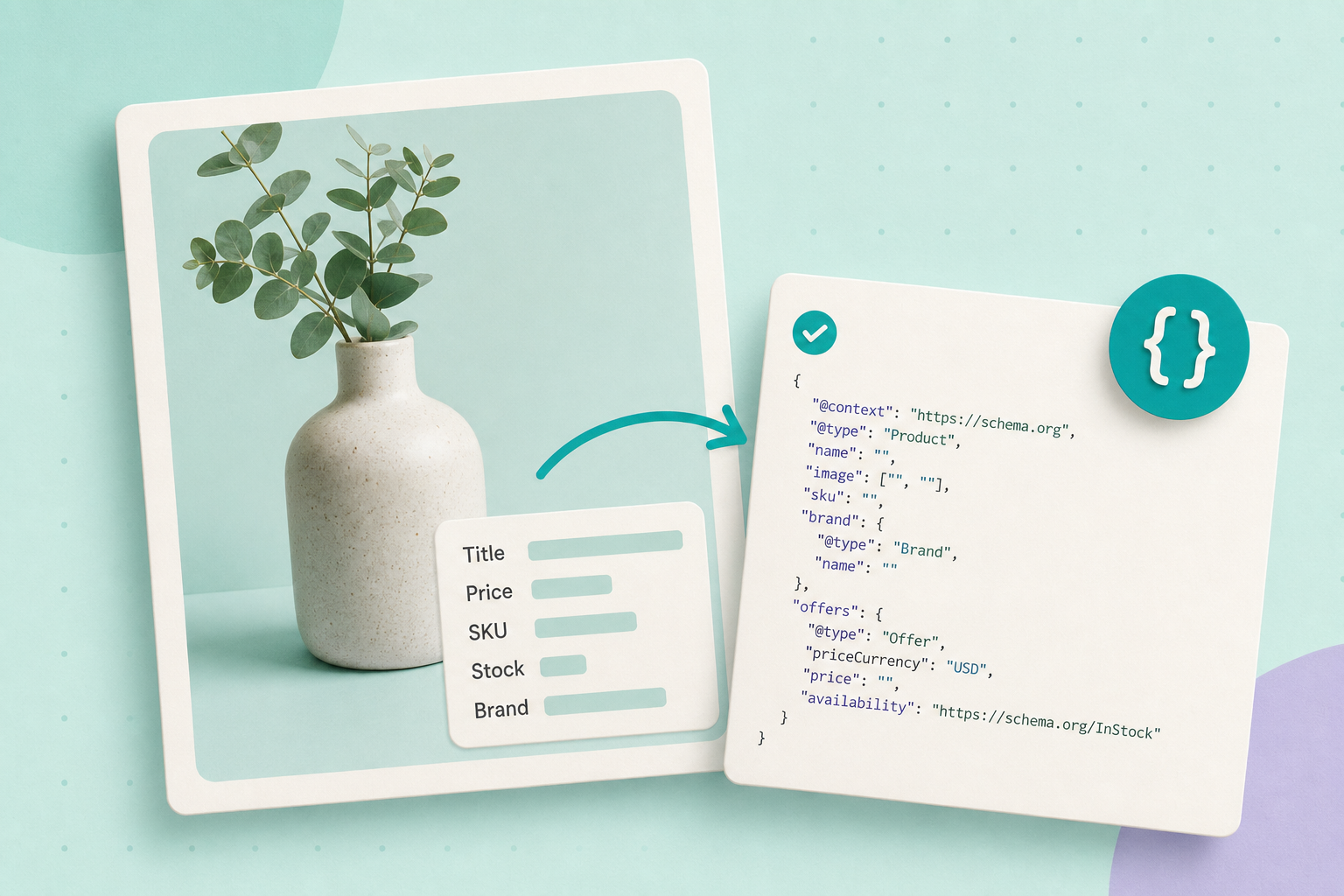
If you want search engines to understand a product page, include a clear Product structured-data block (JSON-LD is recommended) containing the properties Google shows in its examples: name, image, offers (price + priceCurrency), availability, and any authoritative identifiers you actually have (sku, mpn, GTIN). That gives Google the exact facts it asks for and makes troubleshooting straightforward.
In this guide
What to include
Follow Google’s Product guidance for the exact property names and the minimal useful set for Product snippets. See Google’s list and examples for required and recommended properties in the Product guide: Google: Product structured data. For canonical property names and availability values, use the schema.org Product type: schema.org/Product.
- Include: the product
name; and at least one ofreview,aggregateRatingoroffers(Google requires name plus one of these for product snippets). If you provide anoffersobject, includepriceandpriceCurrency, and setoffers.availabilityto a schema.org availability URL (for example schema.org/availability). See Google’s Product snippet guide: Google: Product snippet. - Include if you have them: sku, mpn, GTIN (gtin8/12/13/14), brand, aggregateRating/review data.
- Do not invent identifiers: only publish GTIN/MPN you can verify for that exact product.
Preferred format and a short example
Google recommends JSON-LD for structured data; use the property names and nesting shown in Google’s examples and on schema.org. See the example snippet and details: Google: Product snippet examples and schema.org/Product.
Fictional example (labelled):
{
  "@context": "https://schema.org",
  "@type": "Product",
  "name": "Earl Grey Loose Leaf",
  "image": ["https://example.com/images/earl-grey-1.jpg"],
  "sku": "EG-250",
  "brand": {
    "@type": "Brand",
    "name": "TeaCo"
  },
  "offers": {
    "@type": "Offer",
    "price": "8.50",
    "priceCurrency": "USD",
    "availability": "https://schema.org/InStock"
  }
}
This is an illustrative JSON‑LD block showing the minimum useful fields. It is not a guarantee of any search feature — Google decides what to display.
Map WooCommerce fields to schema properties
Most WooCommerce product editor fields map directly to Product structured-data properties. Confirm how your shop stores each item:
- Product title → Product.name
- Short or long description → description (optional where useful)
- Product images → image array
- SKU (if set) → sku
- Price and currency → offers.price and offers.priceCurrency
- Stock status → offers.availability (use schema.org availability values; see schema.org/availability)
- Brand → brand (use an attribute or taxonomy entry if you keep brands separately)
- Reviews/ratings → aggregateRating or review (only if you have structured review data)
WooCommerce’s product editor documents the core product fields you can edit: WooCommerce: Managing products. Use that editor to add missing fields such as SKU or a brand attribute before exposing them in structured data.
How to check your site outputs Product JSON-LD
- Open a product page in a browser, view source (or use developer tools) and look for a
<script type="application/ld+json">block containing"@type": "Product". - Confirm the JSON-LD includes the keys listed above: name, image, offers.price, offers.priceCurrency, offers.availability, sku/gtin/mpn/brand if you have them.
- Run Google’s Rich Results/Test guidance and examples to validate syntax and values: Google: Intro to structured data (testing guidance) and check the Product guidance: Google: Product snippet.
Also monitor Search Console for structured data reports after you publish changes (Search Console shows detected structured-data types and reported errors).
If data is missing or incomplete
Do not paste random code into the theme without a plan. Choose one of these safe routes:
- Check your theme/plugin first: Some themes and SEO plugins already emit Product JSON‑LD. Inspect the page source and the plugin documentation to see which fields it outputs. If the plugin or theme supports Product schema, consult its docs for how to add missing fields (brand attribute, SKU field visibility).
- Use a reputable SEO/structured-data plugin: Pick a plugin that advertises Product schema support and read its documentation to confirm it reads WooCommerce product fields (title, images, price, SKU, stock). Configure it rather than hacking theme templates.
- Ask a developer to add JSON‑LD safely: If you need custom JSON‑LD, ask a developer to generate it from product data and inject it in a way that your theme and blocks expect. Use the integration method documented by your theme or plugin and test on a staging site first.
After any change, validate the page source and re-run Google’s testing guidance to confirm no syntax errors and that important properties are present.
Quick checklist (what you can do now)
- Open a product page and view source: search for
"@type": "Product". - If present, confirm it includes name, image, offers.price, offers.priceCurrency and offers.availability (schema.org URLs).
- If sku/gtin/mpn or brand exist for the product, confirm they appear in the JSON‑LD; do not invent identifiers.
- Run Google’s structured-data testing guidance: Google: Intro to structured data to check for errors or missing recommended fields.
- If the JSON‑LD is missing or incomplete, check your theme/plugin docs and either configure the plugin or plan a staged, tested update to add JSON‑LD.
Useful short reads from the guide library: How to use ChatGPT with WooCommerce (practical product‑copy jobs) and Writing product descriptions with AI (keeping facts accurate).
Finish by picking one product page you care about, confirm what its JSON‑LD currently contains, and then either configure the plugin/theme or prepare a staged change to add any missing fields. Remember: structured data tells search engines the facts — it doesn’t guarantee a rich result.