
Start with the space the image has to fill, then brief the scene. AI image tools are good at producing attractive pictures. Your job is to make the picture useful: the right shape, a clear subject, room for page copy and no invented version of the product you actually sell.
A homepage banner, category tile and campaign image do different jobs. Asking for “a beautiful lifestyle image for my shop” leaves the tool to make nearly every decision. It may make a lovely square image for the wide gap in your homepage. Very artistic. Completely unusable.
Write the six-line image brief
Decide these six things before you open an image generator:
- Placement: homepage hero, category card, article cover, email or social post.
- Shape: the exact aspect ratio or pixel size the placement needs.
- Subject: what the viewer should notice first.
- Setting: studio, workshop, kitchen, outdoor scene or a simple graphic background.
- Brand direction: colour palette, lighting, materials and mood.
- Composition: where the subject sits and where the page needs empty space for real HTML text or a button.
That final line matters. If your headline will sit on the left, put the subject on the right and request calm negative space on the left. Add the headline in your website or design tool afterwards. You can then change the wording, keep it readable on mobile and avoid asking an image model to typeset your sale correctly on the first attempt.
Use this prompt recipe:
Use: [homepage banner / category tile / campaign image]
Canvas: [pixel size or aspect ratio]
Subject: [one clear focal subject]
Setting: [specific, believable environment]
Style and light: [photographic or illustrated; lighting and mood]
Brand palette: [two or three colours, ideally with hex codes]
Composition: place [subject] on the [left/right/centre]; leave [area] quiet for page copy
Keep: [important details]
Avoid: [text, logos, extra objects, people, visual clutter]
Choose the tool for the job
Our starting recommendation is ChatGPT Images when you want to describe a scene, inspect it and refine it in the same conversation. It can create new images, edit an uploaded image and respond to follow-up corrections. OpenAI says image creation is available across ChatGPT tiers; the Free tier has stricter limits than paid plans. Generated images are saved under Images and can be downloaded with Save. OpenAI’s current ChatGPT Images guide.
| Job | Use this first | Why |
|---|---|---|
| Generate a scene, then revise its composition | ChatGPT Images | The conversation makes a targeted second brief straightforward. It also accepts reference images when the scene must start from something you own. |
| Generate inside a finished banner or social design | Canva Magic Media | Choose square, landscape or portrait, then place the result directly into a design with your real headline and brand elements. Canva Free currently has a shared monthly AI allowance; the exact use count depends on the tool and prompt complexity. Canva’s Magic Media guide and current AI allowance. |
| Stay inside an Adobe production workflow | Adobe Firefly | Text to Image outputs can be downloaded or opened in Adobe Express, while usage is managed through plan-dependent generative credits. Adobe’s download workflow and credit guide. |
Don’t choose a tool from a gallery of its most impressive pictures. Choose it from the next step in your workflow. If you already build campaign graphics in Canva, generating inside the canvas can save time. If the hard part is describing and correcting the scene, the conversational route is stronger.
Worked example: a coffee category banner
For this example, we created a fictional coffee-bean category banner. The page needs a wide image with its headline and button on the left. The product grouping belongs on the right.
Here is the first prompt:
Create a polished, photorealistic wide banner for a coffee-bean category page.

Show an unbranded matte kraft coffee bag, a small pile of roasted coffee beans and a ceramic cup on a warm stone counter. Use a softly lit contemporary kitchen or coffee bar. Keep it calm and believable rather than luxury advertising.

Canvas: landscape 3:2.
Composition: keep the product grouping on the right half. Leave the left half visually quiet for a webpage headline and button added later.
Light: soft early-morning window light with natural shadows.
Palette: warm cream, restrained terracotta, dark brown and muted sage.
No text, logos, labels, watermarks or people.
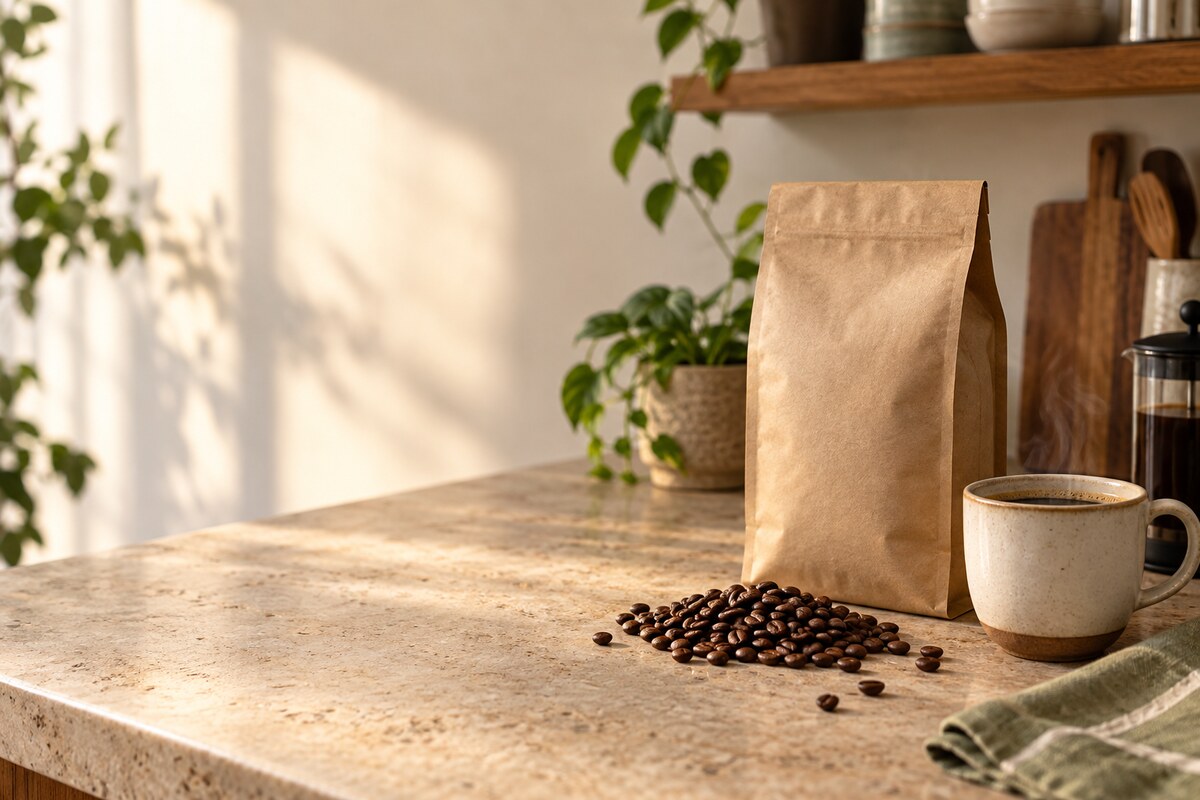
The first image is usable in principle. It has the right aspect ratio, an obvious coffee subject and space on the left. But “space” isn’t the same as a quiet copy area. Strong patches of light and leaf shadows would make a headline harder to read. The cloth in the foreground and equipment at the back also pull attention away from the category.
So the next prompt changes one thing: the composition around the subject.
Improve this existing coffee banner for actual webpage use.

Make the left half a calm, softly lit warm-cream plaster wall with only subtle tonal variation. Remove the foreground cloth, coffee press and cutting-board clutter. Keep the coffee bag, cup and roasted beans grouped on the right. Retain natural shadows and realistic materials.

Preserve the wide 3:2 canvas and generous left-side negative space. Keep the unbranded kraft bag, cup and beans visually consistent. Change only the background and distracting props described. Add no text, logos, labels, watermarks or people.
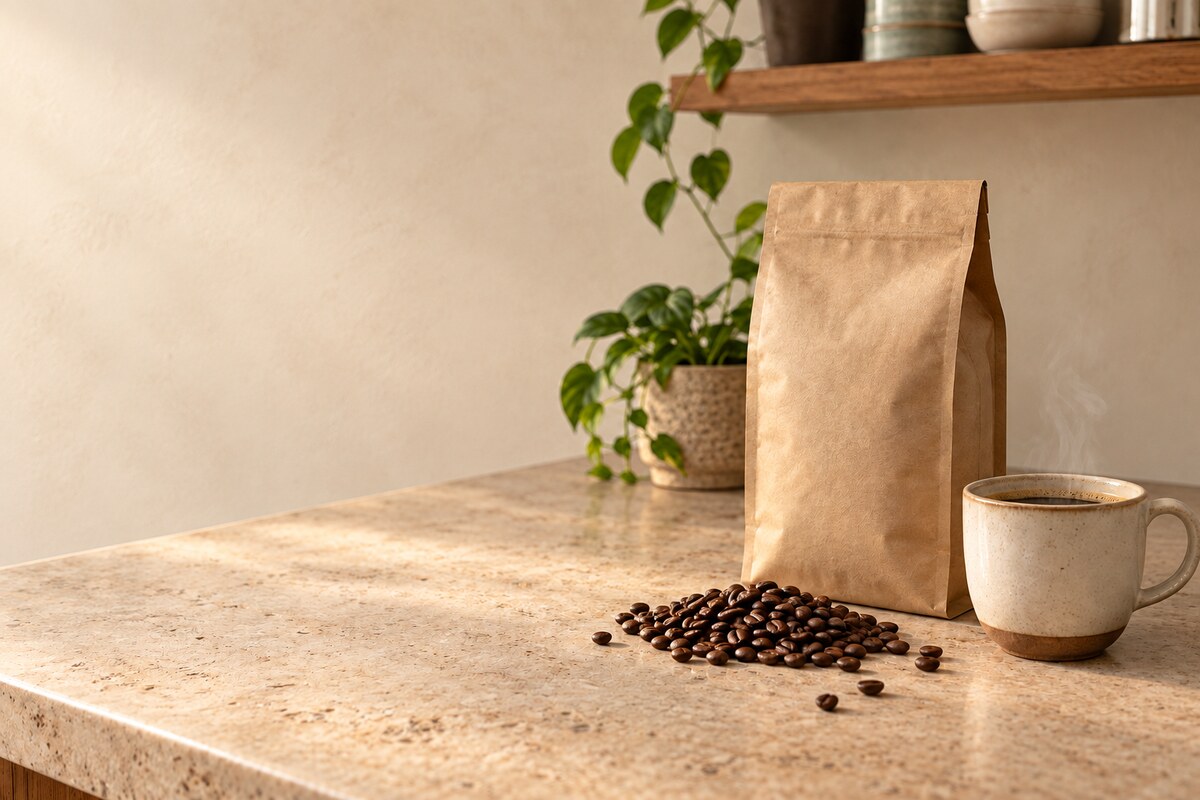
This is the useful loop: generate, judge it in the intended placement, then request a precise correction. “Try again” throws away information. Name the obstruction, state what should replace it and list what must stay.
Keep identifiable products accurate
A generated coffee bag is fine for a fictional composition exercise. It is not a substitute for the bag a customer will receive.
If the image is selling a specific product, start with your own authorised photo or a clean product cutout. Ask the tool to build the setting around it and state the details that must not change: shape, colour, controls, ports, labels, proportions and included accessories. Then compare the output with the source at full size.
Use the uploaded product photo as the fixed product reference.
Create a realistic [kitchen / workshop / outdoor] setting around it.
Keep the product’s shape, colour, proportions, controls, labels and accessories unchanged.
Do not redraw, simplify or replace the product.
Place it on the right and leave calm space on the left for page copy.
Return an image only; add no text or logo.
If a revision changes a switch, invents a fitting or mangles a label, reject it. A more believable shadow does not compensate for showing customers the wrong product. For a product-led banner, an ordinary composite made from the original cutout and a generated background can be the safer choice.
Three prompts you can adapt
1. Category tile
Create a square category image for an online shop selling [category].
Show [representative subject] as the single focal point against [simple setting].
Use [brand colours] with soft, even lighting and enough contrast to remain clear at thumbnail size.
Keep the object centred with comfortable space around its edges.
No text, badges, logos, people or unrelated props.
Use this when several category cards must work as a set. Reuse the same camera angle, background and lighting across the series. Consistency will do more for the page than making every tile individually dramatic.
2. Homepage banner
Create a [wide aspect ratio] homepage banner for a shop selling [product family].
Scene: [specific environment] with [one main subject].
Place the subject on the right third. Keep the left half calm and low-detail for an HTML headline and button.
Style: [photorealistic / editorial illustration], [lighting], [brand palette with hex codes].
No text, logos, watermarks or decorative objects in the copy area.
Preview the image with the real headline at desktop and mobile widths. On a phone, your theme may crop both sides. Keep the essential subject away from the extreme edge.
3. Campaign or lifestyle setting
Create a campaign image showing [product type] being used by [customer type] in [specific situation].
The action should demonstrate [one real use or benefit].
Use natural body positions, believable scale and [lighting/mood].
Composition: [platform ratio]; keep [area] clear for campaign copy added later.
Use the uploaded product reference and preserve [critical product details].
Avoid unsafe use, impossible accessories, visible third-party brands and text inside the image.
Make the scene prove one point. A workshop image containing six products, three workers and a heroic sunset is not six times as persuasive. It is usually six times harder to crop.
Check the result before publishing
Put the image into the real page layout and answer these questions:
- Is the focal subject obvious at card or mobile size?
- Does the crop still work on desktop and phone?
- Can real page text sit in the intended space with enough contrast?
- If a sold product appears, do its shape, colours, labels and important details match the source?
- Has the tool added a logo, word, extra handle, strange hand or decorative object you didn’t request?
- Is the file format and size sensible for the page? Use a modern web format where your platform supports it and avoid uploading a giant master file for a small card.
- Does the image help someone understand the category, use or offer—or is it merely filling a rectangle?
Create one useful image now: choose a live page with a weak or missing visual, measure the image slot, complete the six-line brief and generate one version. Place it in the layout before writing your revision prompt. The page—not the generator’s preview—is where the image has to work.