
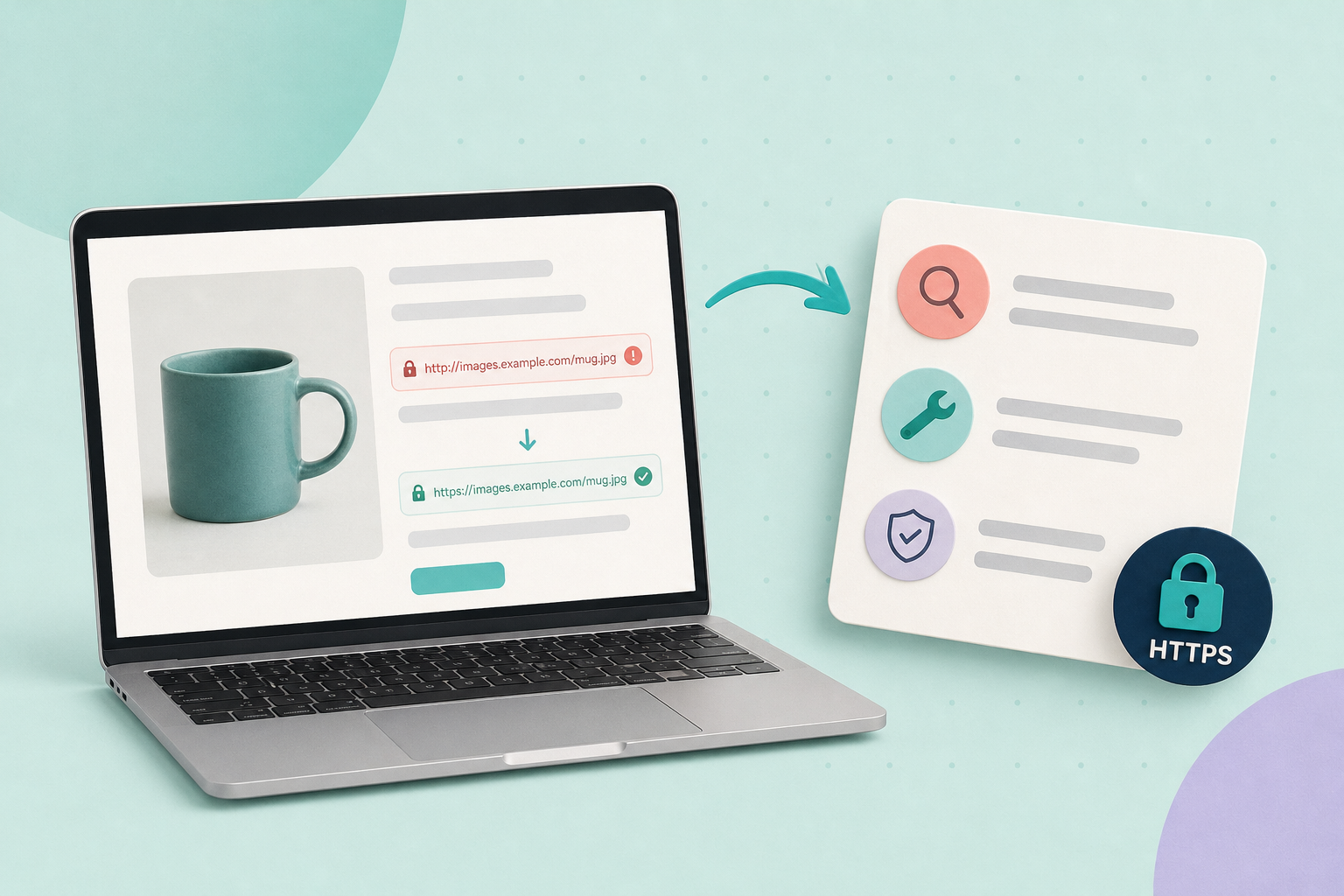
Start by treating mixed content as a source‑of‑truth problem: either an image/link in your CMS or feed is stored as an http:// address, or an external host doesn’t serve HTTPS. Fixing the stored URL or serving the file from an HTTPS origin is the simplest reliable solution; changing certificates or hoping browsers upgrade everything automatically is not.
In this guide
How mixed content happens
Browsers follow the W3C Mixed Content rules: if a secure page (HTTPS) includes resources loaded over HTTP, the browser may block them or attempt an insecure upgrade. That means an insecure image URL in your HTML or feed can be silently blocked by the browser, and some crawlers or marketplace importers will reject it.
Find the source (quick checks)
- Open a product page in the browser with Developer Tools open. In the Console look for mixed‑content warnings and in the Network panel check which resources responded over http:// rather than https://.
- Download the feed file your marketplace or connector uses (CSV, XML or JSON) and search it for “http://”. Any image or link field that begins with http:// is a candidate to fix.
- Check whether the images are hosted on your site, a CDN/bucket you control, or a third‑party host that may not support HTTPS. If the feed contains external http:// hosts, they must be replaced or rehosted.
- For WordPress/WooCommerce shops check the stored attachment URLs and product image fields: the export/feed will include whatever URL is stored for the image. See the WooCommerce product image fields in the REST docs to understand how image src is exposed by APIs/exports: WooCommerce REST API: products.
Fixes, ordered from least to most invasive
- If the host already supports HTTPS: update stored image URLs in your CMS or media library to use https://. For WordPress, core functions control how attachment URLs are returned (see wp_get_attachment_url()). To switch a WordPress site to HTTPS, update the WordPress Address (URL) and Site Address (URL) in Settings → General or use your host’s HTTPS migration tool (see the WordPress migration guide). Then run a database‑safe search/replace to fix hardcoded http:// links — for example WP‑CLI search‑replace (use
--dry-runfirst) or a tested plugin such as Better Search Replace. Back up the site, test on staging, and clear any object/page and CDN caches after making changes. - Clear caches and regenerate feeds/exports: after updating stored URLs, regenerate any cached feed files or clear feed‑generator caches so new downloads emit https:// links.
- If a feed generator uses a hardcoded base URL or site setting: update its configuration or template so it emits https:// (or root‑relative paths that resolve securely). For custom scripts, change the code to read the site’s current scheme rather than hardcoding http://.
- If a third‑party host does not support HTTPS: download images and host them on an HTTPS origin you control (your site, an HTTPS CDN or secure cloud bucket) and update feed references to the new HTTPS URLs. Do NOT link to an HTTP origin and expect the browser or crawler to accept it.
- If you must keep an external provider: ask them for HTTPS support or a secure endpoint; many CDN/storage providers offer HTTPS by default if you configure an SSL certificate or use their managed domain.
Testing and verification
After each change, verify both the product page and the feed endpoint:
- Reload a product page with Developer Tools open. Confirm the Console shows no mixed‑content warnings and the Network panel shows image requests using https://. The W3C rules explain which resources may be blocked or upgraded: W3C Mixed Content.
- Re‑download your feed file and search it for “http://”. The feed should contain no http:// image or link fields that should be served over HTTPS.
- Submit or re‑submit the corrected feed to marketplaces or Merchant/Catalog connectors and check their diagnostics for rejected images or insecure URL messages. Marketplaces typically require image URLs to be accessible over HTTPS; for example, Google’s product API examples use HTTPS imageLink fields: Google Shopping: product API.
Fictional example (labelled)
Fictional example: A jewellery shop exported a CSV feed where the image column still contained http://cdn.examplephotos.com links. The owner reconfigured their CDN to serve HTTPS, updated the stored image URLs in the CMS to https://, regenerated the feed and re‑submitted it to the marketplace. After that the marketplace diagnostics stopped flagging insecure images and the browser console no longer showed blocked images for the shop’s product pages. (This example is illustrative and fictional; use your platform docs and backups when making changes.)
Worked example — change one product image to HTTPS and verify:
- Pick one product (for example SKU
12345) and note the image URL currently exported in your feed. - In the CMS/media library edit that attachment so its URL uses your HTTPS origin, e.g.
https://cdn.example.com/images/sku-12345.jpg, and save the change. - Clear any site and CDN caches and regenerate or re-export the feed file.
- Download the feed and search it for “http://” — confirm the product’s image field now contains
https://. - Open the product page in Chrome (or Chromium), open DevTools → Console and Network, reload the page and confirm there are no mixed‑content warnings and the image request shows
https://in the Network panel.
Checklist and next steps
- Open a product page and confirm no mixed‑content Console entries.
- Download the feed and search for “http://” — fix every image/link that should be HTTPS.
- Update stored URLs in your CMS/media library or change the feed generator to emit HTTPS.
- Host previously unsecure third‑party images on an HTTPS origin if the provider won’t support HTTPS.
- Clear caches, regenerate feeds and re‑submit to marketplaces; check their diagnostics.
Related guides you can read next: Optimize product image filenames, captions and image sitemaps and Create and troubleshoot a Google Merchant product feed from WooCommerce.