
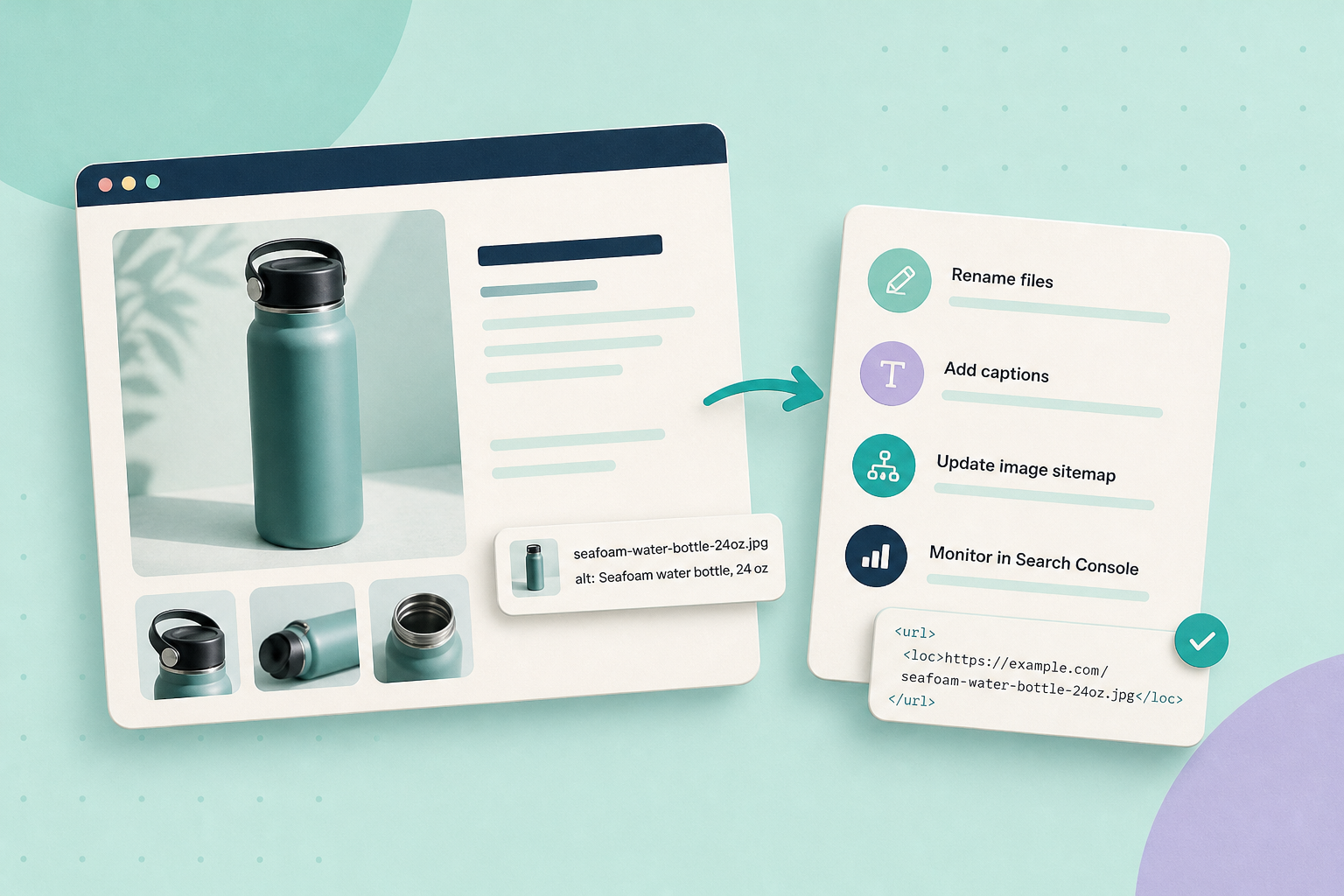
Do this first: pick 8–12 representative product pages, rename one main image per product to a short, factual, hyphen-separated filename before upload, add a visible caption in your CMS, then confirm the stored image URL and check your sitemap and Search Console. These are low-risk edits you can verify in your own account; they won’t guarantee Image Search traffic, but they make images easier to understand for people and machines.
Contents
Plan and pick a test set
Start small so you can observe what changed. Choose 8–12 product pages that cover the shop’s variety (one high-value item, one variation-rich item, one differently sized product and a few typical listings). Work on one image per product so changes are visible in Search Console and in the page HTML without introducing many variables at once.
Prepare descriptive, machine-readable filenames
Before uploading, rename the files to short, factual names that someone could skim and understand: lower-case, words separated by hyphens, include the model and an essential descriptor such as colour or size only when it’s meaningful (for example: modern-brass-curve-table-lamp-300mm.jpg). Avoid generic camera IDs like IMG_2345.jpg and avoid keyword-stuffing. Google’s image guidance recommends using descriptive filenames as a light signal about the image’s subject. Google: Images best practices.
Check how your CMS/host handles filenames
Different platforms can sanitize or rewrite filenames during upload. Test with one renamed file: upload it, then open the stored image URL (right-click & copy image address or view Media Library details) to confirm the exact filename and path the server will publish. For WordPress the function sanitize_file_name() changes whitespace and removes some characters; check your CMS docs to learn what transformations to expect before doing a bulk rename. WordPress: sanitize_file_name().
Add visible captions and fill standard image fields
Visible captions help shoppers and provide context that some crawlers and accessibility tools can use. Add a short caption in your CMS Media Library or in the editor (e.g., “300 mm, modern brass finish”) and keep alt text focused on accessibility rather than repeating a caption word-for-word. In WordPress use the Image block or the Media Library Caption field so the caption appears in the page HTML (figure/figcaption). WordPress: Image block. Also remember that alt text is primarily for accessibility and should describe the image’s content for someone who can’t see it.
Confirm the image URL & sitemap entries
Open the product page’s source or view the Media Library item and copy the final image URL you observed. Next, view your site’s sitemap XML (or the platform-generated sitemap) and check whether the product page lists its images with <image:image> and <image:loc> elements. Google’s image-sitemap guidance explains the image sitemap format and notes that optional caption/title tags should not be assumed—plugin outputs vary—so inspect your XML to see what your setup emits. Google: Image sitemaps.
| What to look for in your sitemap XML | Why it matters |
|---|---|
<image:loc> present for the product page |
Confirms the image URL is being exposed to crawlers via the sitemap. |
| Optional caption or title tags (may be absent) | Some generators include image:caption or image:title, but Google’s documented fields have changed—don’t assume they exist; inspect your XML. |
Submit (or resubmit) the sitemap and inspect the page
Use Search Console’s Sitemaps report to submit or resubmit the sitemap, and then use URL Inspection to look at the indexed copy of the product page. The URL Inspection tool can show whether Google fetched the page and may surface the image resources it saw. Follow the steps in Search Console rather than relying on a timeline estimate—indexing behaviour varies. Search Console: URL Inspection and sitemaps.
Monitor and what to expect
Track the modified pages’ Performance data in Search Console (impressions, clicks) over several weeks. Filename and caption changes are lightweight signals: they improve discoverability and clarity but are only one part of how images are indexed and ranked. Record changes and avoid attributing any single improvement to these edits alone.
Fictional example (labelled)
Fictional shop: A lamp image filename was changed from IMG_2345.jpg to modern-brass-curve-table-lamp-300mm.jpg, a one-line caption “300 mm, modern brass finish” was added via the Media Library caption field, and the owner confirmed the sitemap XML included the page’s <image:loc> entry. This is an illustrative example of the edits only; it doesn’t represent observed indexing outcomes or promise results.
Quick checklist (do this now)
- Pick 8–12 representative product pages to test.
- Rename each chosen image to a short, descriptive, hyphen-separated filename before upload.
- Upload one file as a test and inspect the stored filename/URL in your Media Library or file listing.
- Add a visible caption in the Media Library or Image block, and keep alt text focused on accessibility.
- Open your sitemap XML and confirm
<image:loc>entries for the product pages. - Submit/resubmit the sitemap in Search Console and use URL Inspection to view the indexed page resources.
- Log changes and monitor Search Console Performance for impressions and clicks over a few weeks.
Next action: pick one product page and run the test flow above today. When you’ve confirmed the final image URL and sitemap entry, review this shop guide on alt text for the complementary accessibility work and our guide on image performance if you need to reduce file size without reshooting. Write image alt text that helps shoppers · Improve product‑page LCP and image performance.