
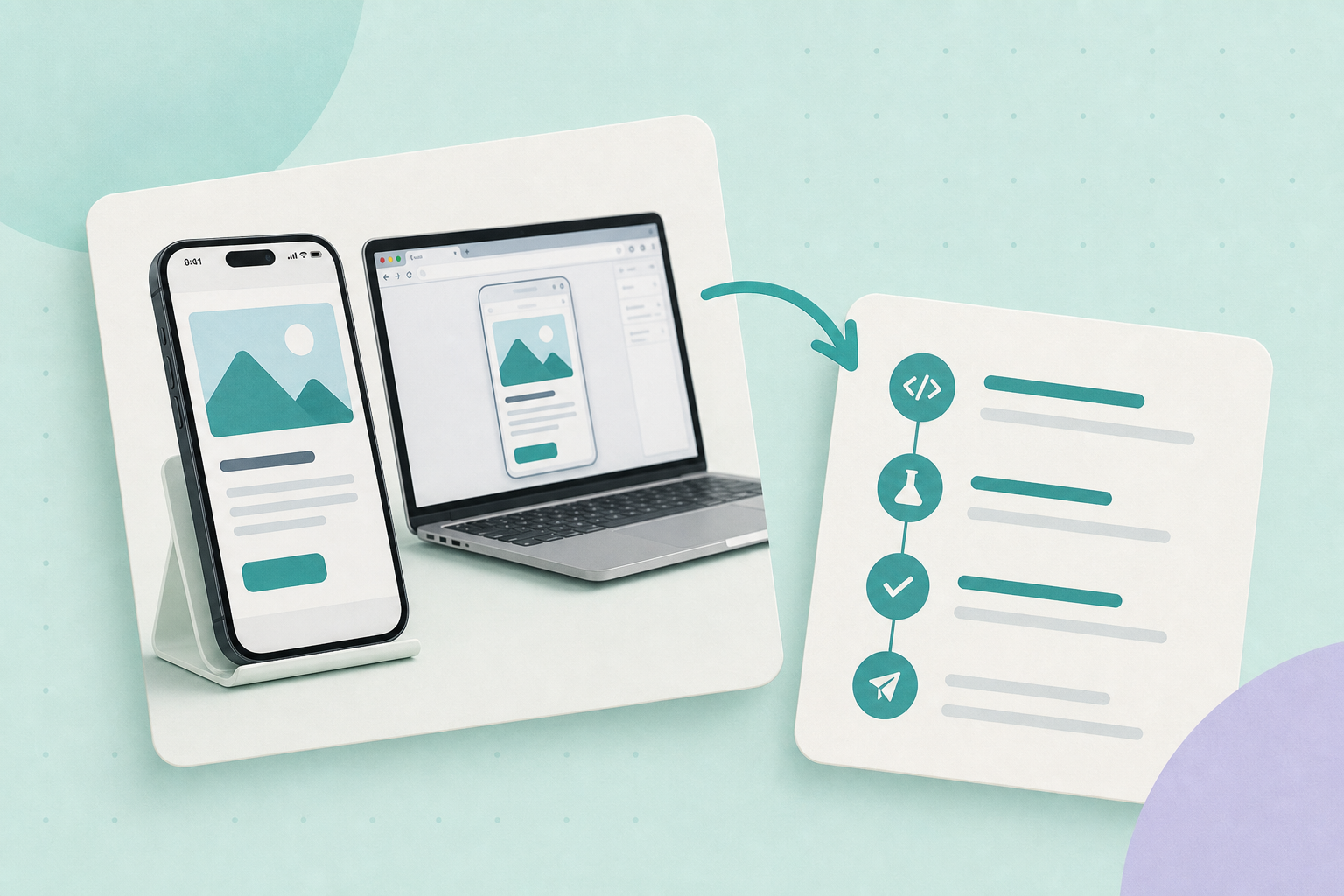
If Search Console flags a mobile‑usability issue, start by reproducing the problem on a phone and in Chrome DevTools. That stops you chasing vague failures and lets you apply the right front‑end change (CSS or template) on staging. After you confirm the visual and interactive fix, publish and use Search Console’s validation flow to request rechecking of the affected example URLs.
Contents
- Inspect the Search Console issue
- Reproduce on a real device and in an emulator
- Common problems and front‑end fixes
- Test on staging and keep before/after evidence
- Request validation in Search Console
- Sample templates and keep a validation log
- When validation fails
- Timing, limits and what not to expect
1) Inspect the Search Console issue and collect example URLs
Open the relevant issue in Search Console — for example the issue list in Page Experience or another issue report — and expand one or two example URLs to inspect the live examples. (Google retired the standalone “Mobile Usability” report; issue details and example URLs now appear in other reports such as Page Experience.) Record a short list (3–10) of example URLs that use the template or component you intend to change. Use the issue details as your starting point and keep that list for local testing and later validation. See Google’s guidance on the validate‑fix workflow and example URLs in Search Console here and Google’s Page Experience announcement here.
2) Reproduce the problem on a phone and in an emulator
Open each example URL on a physical phone first. A live device shows whether tap targets are genuinely awkward, fonts unreadable or an unintended horizontal scroll appears. Then reproduce in Chrome DevTools mobile emulator so you can capture screenshots, device metrics and a Lighthouse run. See Google’s Lighthouse and mobile‑audit guidance in the Search Central help centre: Lighthouse guidance.
Worked example (template you can copy)
Use this concise 6‑step worked example on one product page and keep the evidence for validation. Replace the anonymised URL and filenames below with your real values.
- Page (replace):
example-shop.com/product/blue-tee - Device & Lighthouse method (exact): Physical Pixel 5. In Chrome: Open URL → Toggle device toolbar → pick a mobile device → DevTools > Lighthouse → Device: Mobile → Generate report. Save the Lighthouse HTML/PDF export.
- Baseline items to record before any change: failing audit names (e.g. “Clickable elements too close”), the Lighthouse report file, and two screenshots named before-change-device.png and before-change-lighthouse.png. Add images or files here:
- Exact change (copyable CSS rule to try on the component). Put this in your component CSS or a scoped stylesheet on staging:
.product-swatch + .add-to-cart { margin-left: 12px; padding: 12px 16px; /* increase tappable area */ } @media (max-width: 480px) { .product-swatch { display: block; margin-bottom: 8px; } .add-to-cart { display: block; width: 100%; } } - Staging verification steps: deploy the change to an isolated staging site (not production). On the same physical Pixel 5, open the same product URL, confirm the tap‑target behaviour, then re‑run Lighthouse using the exact method above. Save after-change-device.png and after-change-lighthouse.png. Note the timestamp for each file.
- Record and validate: publish the fix, open Search Console’s mobile‑usability issue and click Validate fix for the example URL you recorded. Keep a single line log entry for this URL, for example:
example-shop.com/product/blue-tee | product page | CSS change: .product-swatch + .add-to-cart {margin-left:12px;} | staging pass: yes | validation request: 2026-10-06 | result: pending
Keeping exact filenames, timestamps and the Lighthouse export makes it trivial to show what you changed and to respond quickly if Search Console reports remaining instances.
3) Common Search Console failures and practical front‑end changes
Map the reported problem to a single, testable change. Don’t guess numeric thresholds; Lighthouse flags failing elements and you should make the touch targets and layout more accessible using responsive patterns.
Clickable elements too close
Increase spacing/padding around interactive elements, switch inline lists to block display at small widths, make buttons full‑width where appropriate, and ensure adjacent tappable items don’t overlap. Test with finger‑sized interaction on a device.
Viewport not set or not responsive
Ensure a responsive viewport meta is present in the template and confirm CSS uses relative widths (%, vw) and media queries rather than fixed pixel layout. A minimal viewport tag is acceptable (example below).
Text too small / line height too tight
Use relative font sizing (rem/em) and a readable line‑height at small widths. Increase contrast and avoid compressing content into tiny text to fit a layout.
Horizontal scroll or content off‑screen
Find the child element causing overflow (images, long words, fixed‑width elements) and make them responsive: max‑width:100%, word‑break or flexible containers.
Example viewport meta you can copy into a head template:
<meta name="viewport" content="width=device-width, initial-scale=1">When you make CSS changes, prefer scoped selectors or component class updates in your theme or component files rather than site‑wide overrides. Consult your theme or front‑end framework documentation for responsive utility classes if you use a framework.
4) Recheck on staging and capture before/after evidence
Apply the change to an isolated staging environment. On staging, re‑run Lighthouse in DevTools for the same page and compare the failing audits. Also test on the same physical device where you reproduced the original problem. Keep dated screenshots and short notes: URL, change applied, device used and result. That evidence helps if validation later reports remaining instances.
5) Publish changes and use Search Console’s Validate fix
When the fixed page is live, open the original Search Console issue and click the Validate fix option for the example URL(s) you recorded. Search Console will run checks and report a validation status. Google’s documentation explains how validation works, that validation can stop if Google finds remaining instances, and that you can speed validation by ensuring relevant URLs are discoverable in your sitemap (Validate fix guide). If available, you can also run a live test from the URL Inspection tool.
6) Sample multiple templates and keep a short validation log
Don’t assume one page represents every template. Sample several URLs that use the same component (product page, category page, checkout snippet) and validate multiple examples. Keep a compact log with columns: URL, template/component, change applied, staging pass (yes/no), validation request date and validation result. That log is useful if validation finds remaining instances and saves you repeating discovery work.
7) If validation fails: check remaining instances and blocked resources
If Search Console rejects the validation, it commonly means at least one example still fails or Google couldn’t fetch a required resource during validation. Revisit the failed example(s), confirm the same device/emulator tests, and ensure resources (CSS, JS, images) aren’t blocked to Googlebot. Then fix the remaining instances and request validation again. The validate guide covers these failure modes here.
8) Timing, limits and what not to expect
Validation isn’t instantaneous. It can take days or occasionally longer to show a final pass or fail. Don’t assume a single change will fix every page; systematic sampling matters. Also remember Google has moved emphasis to Page Experience and Lighthouse audits rather than older mobile‑only tools—see Google’s Page Experience announcement for context (Page Experience changes).
Quick actionable checklist
- Open the Search Console issue and copy 3–10 example URLs (validate‑fix docs).
- Reproduce each URL on a phone and in Chrome DevTools; run Lighthouse for a baseline (Lighthouse/DevTools guidance).
- Apply a focused front‑end change on staging (spacing, viewport, relative fonts, responsive images).
- Verify on staging with the same device and re‑run Lighthouse; collect before/after screenshots.
- Publish, then use Search Console’s Validate fix or URL Inspection live test and record the date.
- Sample other templates that use the same component and repeat the validation as needed.
Related reading from this site: Improve product‑page LCP and Validate product markup.
Make one staged change, confirm it on devices you control, and then validate the specific example URLs in Search Console. That sequence gives you an observable result and a defensible record if validation later reports remaining instances.