
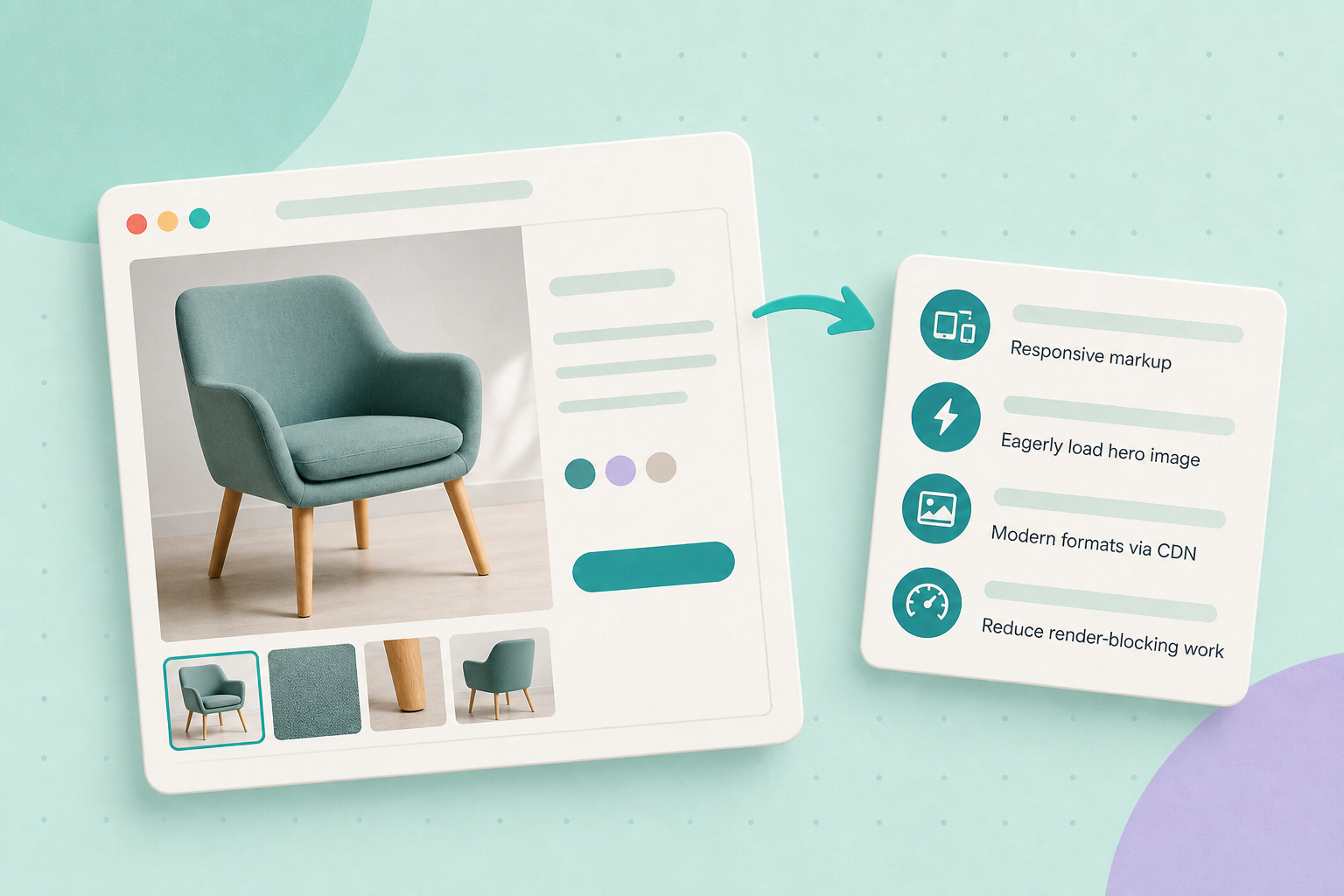
If Lighthouse or PageSpeed Insights tells you the hero image is the LCP, change how the browser gets that image — not the photo. The quickest reliable gains are: make the browser pick the right size (srcset/sizes), ensure the hero image is delivered eagerly, and use your host/CDN to serve modern, compressed formats. Always measure each change with Lighthouse or PageSpeed Insights and repeat.
Contents
Identify the LCP element
Run Lighthouse or PageSpeed Insights on a representative product page and read the LCP result. The report names the LCP element (for example, an img element or a large block of text) and gives a time in seconds. Google treats LCP ≤ 2.5s as the target for a “good” experience. See Google’s Core Web Vitals guidance for the definition and recommended target: Core Web Vitals & LCP.
Inspect the hero image markup
If the LCP item is an image, open the page in Chrome, right‑click the element and choose Inspect. Look at the <img> element attributes you see in the DOM: src, srcset, sizes and loading. The browser uses srcset and sizes to pick an appropriately sized file for the device; if those attributes are missing the browser may download a larger file than it needs.
<img src="/wp-content/uploads/2026/07/product.jpg"
     srcset="/…/product-600w.jpg 600w, /…/product-1200w.jpg 1200w"
     sizes="(max-width:600px) 100vw, 50vw"
     alt="Blue corded drill"
     loading="eager">
Action: note whether srcset/sizes exist and whether the loading attribute is lazy or absent. You’ll change these if they’re wrong.
WordPress & WooCommerce checks
WordPress outputs responsive image markup (automatic srcset and sizes) for attachment images by default. Confirm your theme or a plugin hasn’t removed that behaviour: check WordPress’s responsive images documentation for how core generates this markup and where to look: WordPress responsive images.
For product pages, WooCommerce registers image sizes such as woocommerce_single for the main product image. Check the theme customiser or your theme developer docs to ensure the displayed image size isn’t far larger than the visible area — serving a very large source increases download time. See WooCommerce’s theming docs for the registered image sizes and how themes choose them: WooCommerce image sizes, and the user guidance for product images: Adding product images and galleries (WooCommerce).
Avoid lazy‑loading the LCP image
By default WordPress adds lazy‑loading to images via the loading attribute. For the hero image that appears above the fold, lazy‑loading delays the browser’s ability to paint the LCP element and can worsen the LCP metric. Verify the hero image is delivered eagerly by ensuring its loading attribute is not set to lazy (or is explicitly set to eager).
WordPress documents the lazy‑loading entry point and the filters you can use to control the attribute for specific images: wp_lazy_loading_enabled(). Action: if the hero image is lazy‑loaded, use your theme option or a small filter (or your theme’s documented option) to mark that specific image eager, then re‑test.
Serve modern formats and use a CDN
Modern formats (WebP, AVIF where supported) are typically smaller than JPEG for comparable quality. Many hosts and CDNs can automatically convert or negotiate formats. Ask your host or CDN to enable automatic format negotiation or conversion and compression for images. Then confirm in the browser Network panel that the file returned is a modern format and suitably compressed for the device.
Important: format change alone is not guaranteed to fix LCP — TTFB, render‑blocking resources and the image size the browser downloads all matter. Measure LCP before and after any format changes. Google’s Core Web Vitals guidance covers image delivery as part of LCP optimisation: Core Web Vitals & optimisation.
Reduce render‑blocking and server delay
LCP depends on when the browser can render the hero element, so minimise anything that delays initial rendering:
- Defer or async non‑critical JavaScript (scripts that don’t affect the above‑the‑fold layout).
- Inline minimal critical CSS for the above‑the‑fold area and load the rest asynchronously where appropriate.
- Use server‑side caching and a CDN to reduce TTFB and speed static asset delivery.
Action: run a DevTools Performance trace or the Lighthouse “View Treemap” to spot long tasks and render‑blocking resources, then address the largest offenders in order.
Measure and iterate
Make one change at a time and record the result. Your observable measurement is the LCP element/time reported by Lighthouse or PageSpeed Insights. Re‑run the same test page and compare the LCP timestamp and the identified element to confirm whether the change helped.
Keep these official pages handy while you work: WordPress responsive images docs and the WordPress lazy‑loading reference (responsive images, wp_lazy_loading_enabled()), plus Google’s Core Web Vitals page (Core Web Vitals).
Quick checklist (do this in order)
- Run Lighthouse/PageSpeed Insights and note the reported LCP element and time.
- If LCP is the hero image, inspect the
<img>forsrcset,sizesandloading. - Ensure WordPress emits responsive
srcset/sizes(see WP responsive images). - Make the hero image eager (remove
loading="lazy"for that image) using theme options or the documented WP filters (wp_lazy_loading_enabled()). - Ask your host/CDN to enable automatic WebP/AVIF conversion or negotiation and confirm the browser receives a modern format.
- Audit render‑blocking CSS/JS and reduce anything that delays painting the hero area.
- Re‑run Lighthouse and compare the LCP element/time. Repeat only one change at a time so you know what helped.
Illustrative example: imagine a product page where Lighthouse reports LCP = 4.0s and identifies the main img. You inspect and see no srcset, the image is 2400px wide and loading="lazy". Practical next steps: ensure WordPress outputs responsive markup (or add reasonable srcset), set the hero image to loading="eager", and enable CDN format negotiation. After each change, re‑run Lighthouse and expect the LCP time to fall if those changes remove the delivery or rendering bottleneck. Remember: you must re‑test; format or lazy changes can only be judged by the measured LCP.
Related shop guides you can read next: Write image alt text that helps shoppers and Turn your own product photo into a studio‑style image with AI (useful if you later decide to create alternate assets without a re‑shoot).
Practical next action: pick one representative product page, run Lighthouse, and follow the checklist above for that single page. Record the initial LCP element/time, make only the eager/lazy and responsive‑markup checks first, then re‑test to see the effect.