
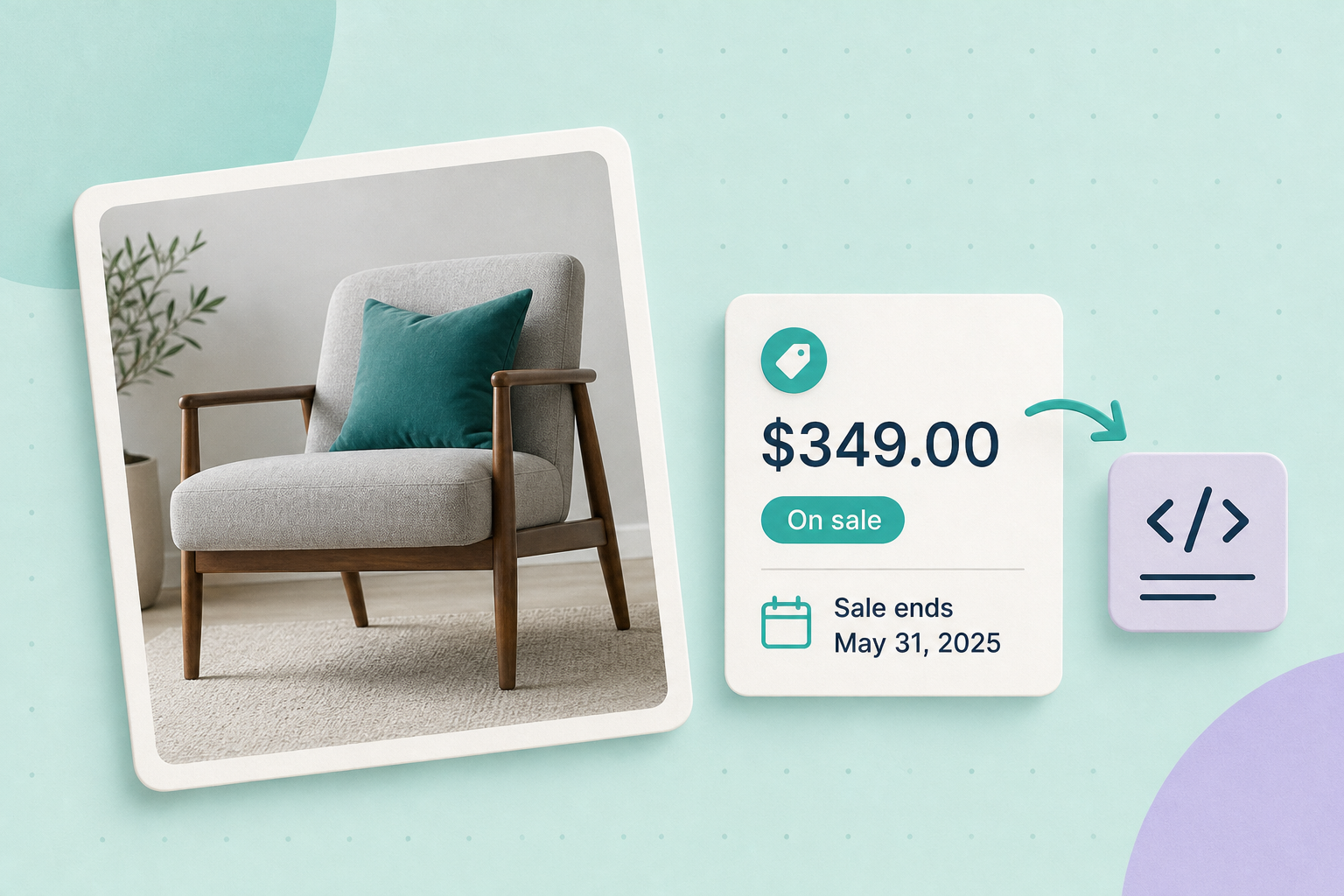
If you run time‑limited sales, make the page and the JSON‑LD say the same thing: the shopper must see the sale price you intend, and the Offer in your structured data must match that price and currency. Do that first — then make sure any sale dates in the markup reflect when the price is actually valid.
Contents
Which fields to include
At minimum, a Product’s Offer in JSON‑LD should expose an active price and its currency so parsers can read the exact value you show shoppers. Use Offer.price and Offer.priceCurrency for the active offer, and include a sale period using offer‑level date properties or a priceSpecification object if your platform supports it. For authoritative schema details and examples see schema.org’s Offer page and Google’s product structured data guide Google Search Central: Product structured data.
Two practical patterns you’ll see:
- Simple Offer with price and a validity date: Offer.price, Offer.priceCurrency and Offer.priceValidUntil (useful for a single expiry date).
- priceSpecification pattern: model list and sale prices explicitly using UnitPriceSpecification objects when you need both values visible in the structured data.
Because platforms name internal fields differently (for example a CMS might store fields named “sale_price” or “salePrice”), confirm how your theme or plugin maps those fields into schema.org properties before assuming names match. WooCommerce’s product editor describes regular and sale price fields; check your shop’s editor documentation as well: WooCommerce product editor settings.
Clear example JSON‑LD (fictional)
Below is a short fictional example you can copy and adapt on a staging product. It models a Product with an Offer that has a sale price and an explicit end date for the sale. This example is illustrative only — the dates and values are made up.
{
  "@context": "https://schema.org",
  "@type": "Product",
  "name": "Example Lamp",
  "sku": "LAMP-123",
  "offers": {
    "@type": "Offer",
    "price": "45.00",
    "priceCurrency": "USD",
    "priceValidUntil": "2026-11-03",
    "availability": "https://schema.org/InStock"
  }
}
Fictional example: a retailer sets a 48‑hour sale on a lamp and includes price=45.00, priceCurrency=USD and priceValidUntil=2026‑11‑03 in the product JSON‑LD. That snippet is a clearly labelled fictional illustration; your store’s field names and required extra properties may differ.
Keep the structured data and visible price synchronized
Search engines and shoppers must see the same price. Practical steps:
- Decide the source of truth in your system: the product editor’s sale price field, a promotional scheduler, or your commerce platform’s pricing API. If your platform exposes a sale‑price field, confirm the structured‑data generator reads that field.
- When you publish a new sale price, update the JSON‑LD output that appears on the page at the same time. If your platform does this automatically, confirm it by inspecting the page source.
- Include the same handling for taxes and displayed price variations: the visible price shown to users (including GST/VAT if you include it) should match what the Offer.price implies. Do not instruct changing the displayed price without checking legal, tax and platform rules.
For WooCommerce shops, check any rich‑snippet or schema toggle your plugin provides — the official WooCommerce rich snippets documentation explains where generated product schema may be controlled: WooCommerce: Rich snippets.
Staging test and verification steps
Run these checks on a staging copy before the live sale:
- Create a short test sale on a staging product (set the sale price and, if your editor supports it, the sale start/end dates).
- Load the staging product page, view page source and locate the
application/ld+jsonblock. Confirm Offer.price and Offer.priceCurrency show the sale price and currency. - Run the public page URL through Google’s structured‑data testing guidance and tools; Google documents structured‑data testing and validation here: Structured Data | Google Search Central. You can also use the Rich Results Test linked from that page to confirm Google parses your sale price fields.
- Verify the visible page content (what a shopper sees) matches the JSON‑LD values exactly.
- Record the staging page URL and the JSON‑LD snippet you observed so you have an audit trail of the expected markup during the sale.
For an extra check, run the same staging URL through any other search‑engine testing tools you use; vendor behaviours differ and search engines decide how they present price information. If you need a quick reference on validating product markup, see our guide: Validate product structured data with Google’s Rich Results Test and URL Inspection.
Post‑sale checks and cache considerations
Two common reasons parsers continue to see a stale sale price are cached pages and delayed code that generates JSON‑LD. To minimise stale data:
- Confirm whether your CMS or plugin schedules both the visible price change and the JSON‑LD change at sale start/end. If the scheduler only updates the visible price, arrange for the structured‑data generator to use the same source field or hook.
- After a live change, purge or invalidate caches and CDN copies following your host/CDN documentation so crawlers fetch the current page. Do not rely on a full page export as a backup for cache logic; follow host instructions for invalidation.
- Immediately after the sale ends, view the live page source and re‑run the structured‑data test to ensure Offer.price or any sale‑specific properties no longer advertise the expired sale.
We avoid prescribing vendor‑specific cache commands here. Check your host or CDN documentation for invalidation steps and document your shop’s purge procedure as part of each sale.
Limits: what you shouldn’t expect
- Adding sale markup does not guarantee a special search result or a visible badge in search engines; presentation is decided by the search engine. See Google’s notes on product markup and how results are computed: Google Search Central: Product structured data.
- Different search engines may accept slightly different inputs or prefer certain patterns; test with the specific engine’s tools where available rather than assuming identical behaviour.
- We’ve not prescribed exact ISO‑8601 variants for every parser; use ISO‑8601 dates (YYYY‑MM‑DD or full timestamps) and verify with the engine’s tools. Where a vendor documents accepted formats, follow that guidance explicitly.
Related guides
If you want step‑by‑step help for product markup on WooCommerce or to validate markup with Google tools, see these existing guides:
- Add the product structured data search engines expect (WooCommerce)
- Validate product structured data with Google’s Rich Results Test and URL Inspection
Decide which product will be your first live timed sale, run the staging checklist above for that product and document the observed JSON‑LD before you go live. That single, repeatable check will prevent most accidental price misrepresentations.